An IVR (voice menu) greets callers with a message and routes them by the key they press, e.g. “1 for sales, 2 for support”.
- 1In the left menu choose “PBX” → “Incoming Call Tools” → “IVR” and add a new menu.
- 2On the “General” tab, give it a name in “Description” (e.g. “Main menu”).
- 3Pick the greeting in “Welcome Message”. The headphones icon lets you listen to it.
- 4Set in “Timeout” how many seconds the system waits for a choice (e.g. 10).
- 5Fill in the required “Invalid Destination” and “Timeout Destination”: where the call goes if the caller presses a wrong key or nothing at all (e.g. reception).
- 6On the “Entries” tab, add the options: a key and a destination for each.
- 7Click “Save”.
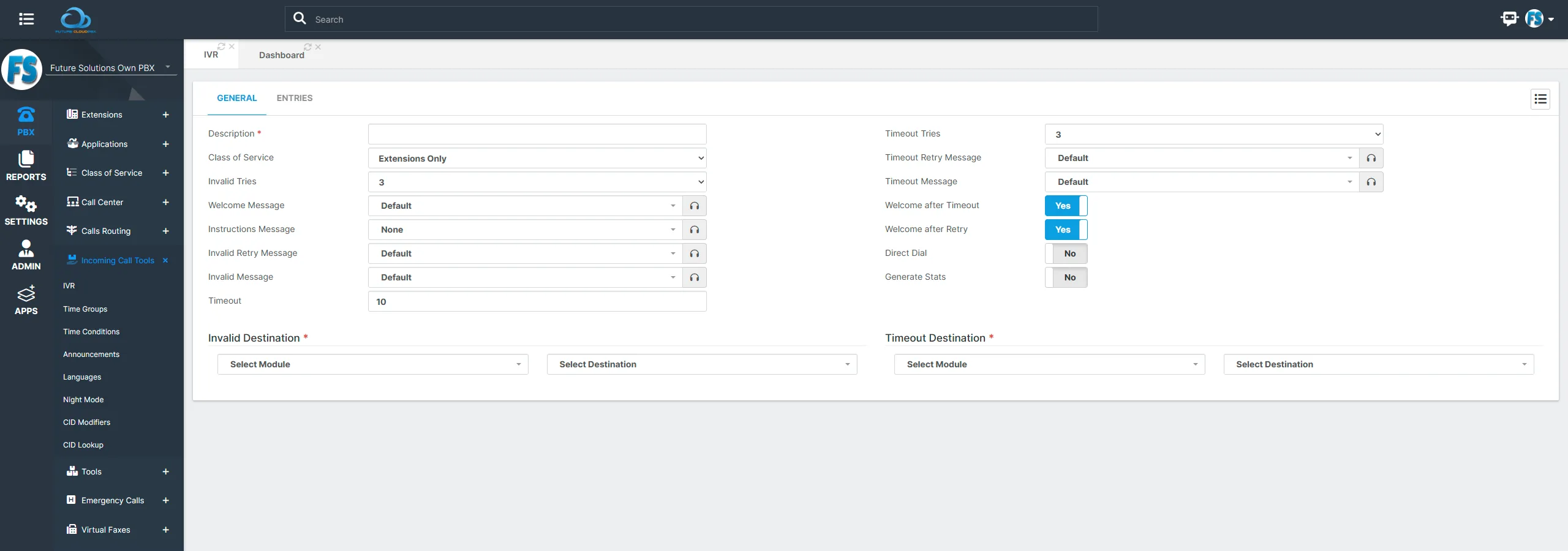
Useful settings
| Field | What it does |
|---|---|
| Invalid Tries / Timeout Tries | How many times the menu repeats before the call goes to the matching destination. |
| Invalid / Timeout Message | What the caller hears after a wrong key or no input. |
| Welcome after Timeout / Retry | Whether the greeting plays again on each retry. |
| Direct Dial | Lets callers dial an extension directly. |
| Generate Stats | Records statistics for menu choices. |
Combine the IVR with “Time Conditions” for different behaviour in and out of hours. We can set it up with you for free.